
Microsoft Teams Getting Started Guide
Getting Started
Welcome to the Microsoft Teams getting-started guide for integrating Teams with Build a Doc. Because Teams does not directly list or host custom connectors, this guide uses Power Automate (Microsoft Flow) to call Build a Doc.
This getting-started guide shows how to configure a Power Automate flow that is triggered by a Teams channel post. The flow retrieves files from SharePoint, runs the Build a Doc Convert Word Document action, uploads the resulting file back to SharePoint, and posts a message to the Teams channel when complete.
Prerequisites
- A Build a Doc subscription and an API key.
- An appropriate Power Automate account with permissions to create flows, and access to the connectors you will need (Teams, SharePoint).
- A Word Template (Invoice) stored in a SharePoint document library. (see Word Template Syntax for template syntax). The Word Template used in this example can be found here.
- An appropriate JSON Data source, which matches the template. The JSON Data source used in this example can be found here.
- An appropriate Teams Channel to trigger the input & receive the output.
Flow Overview
- Trigger the flow (from a message in Teams Channel).
- Initialise Variables.
- Check whether the message should trigger document conversion.
- Get the Word template and JSON data from SharePoint.
- Set variables.
- Call the Build a Doc Convert Word Document action with a valid JSON data source.
- Create the resulting PDF file in SharePoint.
- Post a message to the Teams channel.
- Verify the Output.
Step by Step
1. Create a new flow
-
In Power Automate, click + New flow → Instant cloud flow (or choose the trigger type you need).


- Name the flow (e.g., Build a Doc - Generate Invoice).

- Name the flow (e.g., Build a Doc - Generate Invoice).
-
Choose the When a new channel message is added trigger. Select the Team and Channel to use as the trigger.

2. Initialise Variables
- Create an Initialise Variable action. Name it
varJSONContent, set the Type toString, and leave the value empty. - Create another Initialise Variable action. Name it
varDocxContent, set the Type toObject, and leave the value empty.

3. Checking for the trigger message
-
Create a Condition action. This will be used to check whether the Teams message contains our trigger phrase
'Generate Invoice'.- Select the
ORoperator. - For the first input, insert:
contains(toLower(coalesce(triggerOutputs()?['body/subject'], '')), 'generate invoice')is equal totrue. - Add a new item and insert:
contains(toLower(coalesce(triggerOutputs()?['body/body/content'], '')), 'generate invoice')is equal totrue.

- Select the
4. Get the template and data from SharePoint
-
Inside the control’s
Truebranch, add two Send a HTTP request to SharePoint actions - one to get the JSON data and one to get the.docxtemplate. -
Site Address: enter your SharePoint site.
-
Method:
GET. -
URI: put the server-relative file path for the file using this pattern:
_api/web/GetFileByServerRelativeUrl(serverRelativeFilePath)- Example (to retrieve
Invoice.json):_api/web/GetFileByServerRelativeUrl('/sites/buildadoc/Shared%20Documents/Convert%20Word%20Document/Invoice.json')/$value
- Example (to retrieve
-
Replace the example with the correct URI for your SharePoint site and file path.

-
Leave the advanced parameters ‘Headers’ and ‘Body’ empty.
-
Replicate the second Send a HTTP request to SharePoint action to retrieve the
.docxfile.
5. Set Variables
-
Immediately after the ‘Send a HTTP request to SharePoint - Get JSON Data’ action, insert a Set Variable action.
-
Name:
varJSONContent. -
Value: Insert the following expression:
base64ToString(body('Send_an_HTTP_request_to_SharePoint_-_Get_JSON_Data')?['$content']). -
Immediately after the ‘Send a HTTP request to SharePoint - Get docx Template’ action, insert another Set Variable action.
-
Name:
varDocxContent. -
Value: select the output of your ‘Get docx Template’ action:
body('Send_an_HTTP_request_to_SharePoint_-_Get_docx_Template').

6. Call Build a doc Convert Word Document action, with a valid JSON data source.
- Outside of the loop, in the Add an action search box, insert HappyWired PowerDocs, and select Convert Word Document.
6b. Creating the connection
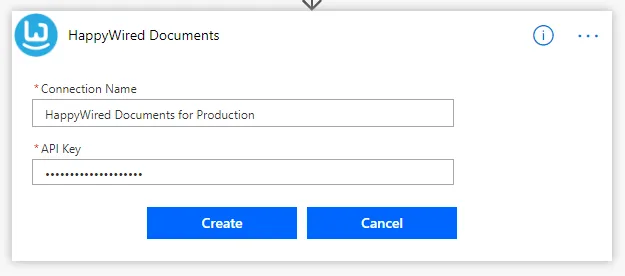
- On first use, you will be prompted to create the connection. You may name the connection anything you like.
- Paste your API key, then select Create.
6c. Configuring The Action
-
Document: Set to the output of the Set variable - varDocxContent action.
-
Data Source: Add a data source named
Invoice(or the name your template expects). -
Format:
JSON. -
Data: use the output of the Set variable - varJSONContent action.
-
Output Format: Set to
PDF.
7. Create the resulting PDF file in SharePoint.
-
Add a SharePoint Create File action.
-
Site Address: where you wish the file to be uploaded.
-
Folder Path: your desired folder path.
-
File Name:
Generated Invoice.pdf. Ensure you include the file extension. -
File Content: the output of the Convert Word Document.

8. Post a message to the Teams channel with a link to the file.
-
Add a Post message in a chat or channel Teams action.
-
Post as: Flow Bot.
-
Post In: Channel.
-
Team: Select your desired team.
-
Channel: Select your desired Channel.
-
Message: Input your desired message.

9. Verify the Output.
- Save your flow and test it by posting in your chosen Teams channel a message that contains the trigger phrase ‘Generate Invoice’.
- Once the flow finishes running, you should receive a message in your Teams channel stating the file is ready to view.
- Open the file in your SharePoint site and verify it looks correct. If using the provided templates, it should look like the following:

Troubleshooting
Click to expand common errors and fixes
File Not Found / Permissions
Cause:
Wrong SharePoint site URL or file path, or the flow account lacks read access.
Fix:
- Re-select the file with the picker to ensure the Site Address and File Identifier/File Path are correct.
- Confirm the flow connector has read permission on the document library.
Blank or Missing Fields in PDF / Blank Placeholders
Cause:
JSON keys don’t match template placeholders or wrong data source name.
Fix:
- Make JSON property names exactly match template placeholders (case-sensitive).
- Use Compose or Parse JSON during a run to inspect the payload.
No File Extension
Cause:
Create File filename missing extension or wrong type.
Fix:
- Include the correct file extension (e.g.,
.pdf) that matches the Build a Doc output.
Teams Agent Cannot Post to Channel
Cause:
Channel is private or connector lacks rights.
Fix:
- Ensure the channel is public (not private) or pick a different channel.
- Check Teams connector permissions.
- If private, add the Agent to the channel.
Variable Initialisation Issues
Cause:
Variables not initialised before use (e.g., varJSONContent, varDocxContent).
Fix:
- Initialise variables with valid values before they’re referenced.
SharePoint HTTP / Request Failures
Cause:
Bad URLs, incorrect file paths, or permission errors.
Fix:
- Verify SharePoint URLs and file paths in HTTP actions.
- Confirm the connector has the right permissions.
Condition Logic Not Matching
Cause:
Condition doesn’t detect the expected trigger phrase (e.g., “Generate Invoice”).
Fix:
- Check the condition expression for exact text matching and trimming.
- Consider case sensitivity or whitespace.
Document Conversion (Word → PDF) Fails
Cause:
Invalid input file content or malformed data source.
Fix:
- Confirm
Convert_Word_Documentgets valid file content. - Validate JSON/data source format and required fields.
File Creation Problems
Cause:
Wrong folder path or duplicate filename.
Fix:
- Use the folder picker for the destination path.
- Include the extension and ensure the filename is unique.
Error Handling / Diagnosing
Fix:
- Inspect the run history for the failing run.
- Open the failing action’s outputs for step-level error messages.
Quick Checklist
- Confirm the Teams trigger fired and
groupId/channelIdare correct. - Verify
varJSONContentandvarDocxContentare initialised and valid. - Re-check SharePoint URLs, file paths, and connector permissions.
- Validate condition logic detects the exact trigger phrase.
- Ensure
Convert_Word_Documentreceives correct content. - Use the folder picker and correct extension when creating files.
- Confirm the Teams message posts after file creation and has valid permissions.
- Read run history for error details.