
Power Automate Getting Started Guide
Welcome to the Power Automate (Microsoft Flow) getting-started guide for Build a Doc. This tutorial shows you, step-by-step how to connect the Build a Doc Power Automate (Microsoft Flow) connector to your Build a Doc subscription and create your first flow that converts a Word template into a PDF with data dynamically inserted. It provides a quick, practical getting started guide where the skills learned can be applied to other Build a Doc actions.
Prerequisites
- A Build a Doc subscription and an API key.
- An appropriate Power Automate account with permissions to create flows, and access to the connectors you will need (OneDrive / SharePoint).
- A Word template (Invoice) stored in OneDrive (see Word Template Syntax for template syntax). The Word template used in this example can be downloaded here.
- An appropriate JSON Data source, which matches the template. The JSON Data source used in this example can be found here.
Flow Overview
- Trigger the flow (manual, HTTP, or scheduled).
- Get the Word template file content from source (OneDrive).
- Call the Build a Doc
Convert Word Documentaction with a valid JSON data source. - Create the resulting PDF file in OneDrive.
- Verify the output.
Step-by-step
1. Create a new flow
-
In Power Automate, click + New flow -> Instant cloud flow (or choose the trigger type you need).


-
Name the flow (e.g., Build a Doc - Generate Invoice).

-
Choose Manually trigger a flow (this is the event that kicks off your flow), then Create.
2. Fetch the template file
- Add OneDrive for Business -> Get file content.

- Within the Get File Content action, select the file that you wish to use from the file path selector.

- This demonstration will use the below template:

3. Add the Build a Doc: Convert Word Document action
- Click the
+to add an action and search for the HappyWired PowerDocs connection.
- Select Convert Word Document.
3b. Creating the connection
- On first use, you will be prompted to create the connection. You may name the connection anything you like.
- Paste your API key, then select Create.
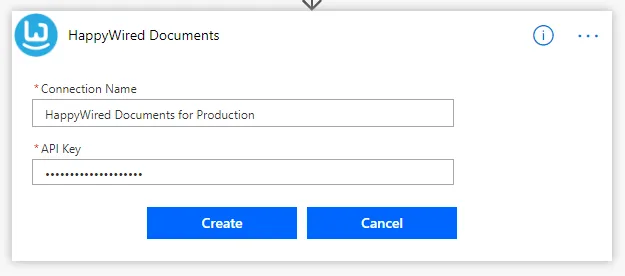
4. Configuring the action
-
Document: Set to the output of the OneDrive → Get file content action.
-
Data source: Add a data source named
Invoice(or the name your template expects). -
Format:
JSON. -
Data: use the JSON object that you will insert into the template.
-
Output Format: Set to
PDF.
5. Save the Output (Create File)
-
Add OneDrive for Business → Create File

-
Configure the Create file action:
- Folder Path: choose the folder where you want the PDF saved.
- File Name: set an appropriate name and include the
.pdfextension. - File Content: map the Build a Doc action’s converted output (Base64 content).
-
If the Build a Doc action succeeds and returns base64 content as intended, the output file will be correctly created in the destination.
6. Test and validate
- Save and run the flow.
- Inspect the resulting PDF in your OneDrive folder. It should contain the data from your data source inserted into the template and look like the invoice below:

Troubleshooting
Click to expand common errors and fixes
File Not Found / Permissions
Cause:
Wrong OneDrive file ID or file path, or flow account lacks access.
Fix:
- Re-select the file in the action to ensure correct file ID/path.
- Confirm the connected OneDrive account has permission to the file.
Trigger Not Firing
Cause:
Manual trigger not activated or missing required inputs.
Fix:
- Save the flow and run it using the Power Automate button (or the expected trigger).
- Provide required manual-trigger inputs.
Blank or Missing Fields in PDF / Blank Placeholders
Cause:
JSON keys don’t match template placeholders or wrong data source name.
Fix:
- Make JSON property names exactly match template placeholders (case-sensitive).
- Validate the payload structure using Compose or Parse JSON.
No File Extension / Wrong Extension
Cause:
Create file filename is missing an extension or using the wrong type.
Fix:
- Include the correct file extension (e.g.,
.pdf) in the Create file name that matches the conversion output.
Variable Initialisation Issues
Cause:
Initialise variable contains invalid data or wrong reference.
Fix:
- Ensure
Initialise variableactions are set to valid data and the flow references that variable correctly.
Document Conversion (Word → PDF) Fails
Cause:
Invalid input file content or malformed data source.
Fix:
- Confirm the
Convert_Word_Documentaction receives the expected file content. - Validate the JSON/data source format and required fields.
File Creation Problems
Cause:
Wrong folder path or duplicate filename.
Fix:
- Use the folder picker for the destination path.
- Include the extension and ensure the filename is unique.
Error Handling / Diagnosing
Cause:
Runtime errors not yet investigated.
Fix:
- Inspect the run history for the failing run and action outputs for step-level error messages.
Quick Checklist
- Confirm the manual trigger actually fired (check Run history).
- Re-select files used in
Get File Contentactions - confirm file IDs and that files exist. - Verify OneDrive connector permissions.
- Check
Initialise Variableactions use correct and valid data. - Ensure
Convert Word Documentgets valid file content and properly formatted data source. - Use the folder picker and include the correct file extension in the
Create fileaction. - Open run history and read the failing action’s error details.